Day 16 - Docker for DevOps Engineers.
Hey there! 👋
I'm Tushar Ranjan, a DevOps Engineer passionate. Currently, on a learning adventure, I'm here to share my journey and Blogs in the world of cloud and DevOps.
🛠️ My focus? Making sense of AWS services, improving CI/CD, and diving into infrastructure as code. Whether you're fellow interns or curious enthusiasts, let's grow together in the vibrant DevOps space.
🌐 Connect with me for friendly chats, shared experiences, and learning moments. Here's to embracing the learning curve and thriving in the exciting world of AWS DevOps Technology!
Introduction to Virtualization and Containerization
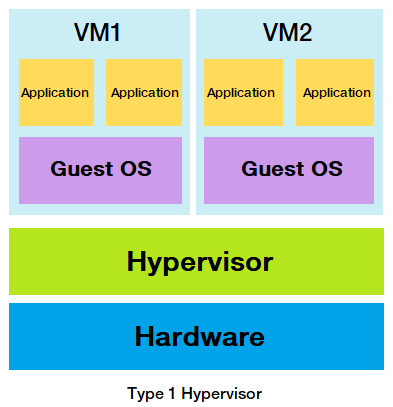
What is Virtualization?
Virtualization is a technology that allows for the efficient utilization of physical computer hardware by creating multiple virtual machines (VMs) on a single physical machine. Each VM runs its own operating system (OS) and behaves like an independent computer, despite sharing the underlying hardware. This abstraction layer over the hardware enhances flexibility and resource efficiency and is a foundational technology for cloud computing.
What is Containerization?
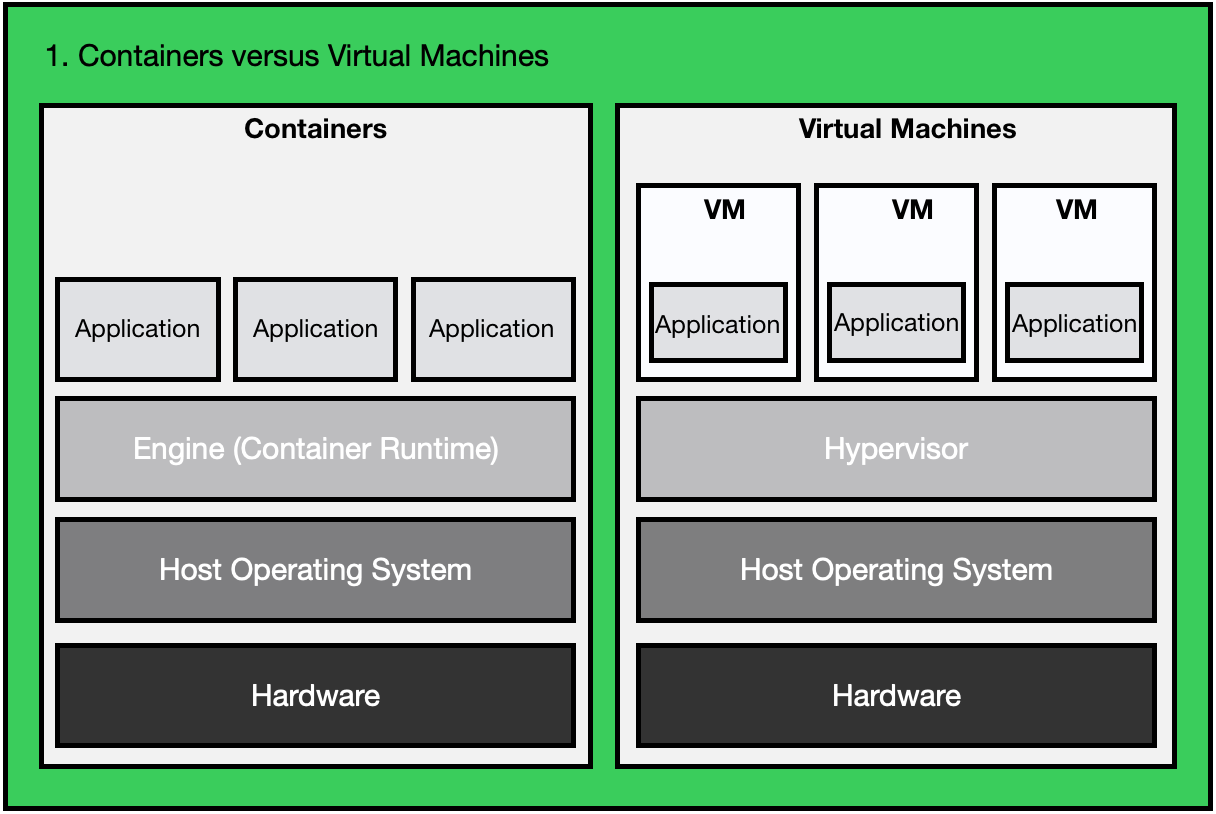
Containerization packages software code along with its dependencies and libraries into a single executable unit called a container. Unlike VMs, containers share the host OS's kernel but remain isolated from each other. This approach is more resource-efficient and portable, making containers ideal for modern cloud-native applications.
Understanding Docker
What is Docker?
Docker is an open-source platform designed to automate the deployment, scaling, and management of applications using containerization. It enables developers to package applications along with their dependencies into containers, ensuring consistent behavior across different environments.
Advantages of Docker:
Rapid Deployment: Quick and efficient application deployment.
Resource Efficiency: No need for pre-allocating RAM.
CI Efficiency: Build applications once and run them anywhere.
Cost-Effective: Lightweight and requires fewer resources.
Portability: Containers can run on physical hardware, VMs, or cloud environments.
Isolation: Ensures applications run in isolation, improving security and stability.
Disadvantages of Docker:
Not ideal for applications requiring a rich GUI.
Management complexity increases with a large number of containers.
Limited cross-platform compatibility (e.g., Windows containers can't run on Linux).
Best suited for environments where the development and testing OS are the same.
No built-in solution for data recovery and backup.
Docker Architecture
Key Components:
Docker Daemon: Runs on the host OS, managing containers and services.
Docker Client: CLI used to interact with the Docker daemon.
Docker Host: The environment where Docker runs, including the daemon, images, containers, networks, and storage.
Docker Registry: Stores Docker images. Public registries like Docker Hub and private registries are available.
Docker Images: Read-only templates used to create containers.
Docker Containers: Instances of Docker images, running isolated processes.
Installation of Docker
Update your package list:
ubuntu@ip-172-31-25-83:~$ sudo apt-get updateInstall Docker:
ubuntu@ip-172-31-25-83:~$ sudo apt-get install docker.io -yVerify Docker installation:
 ubuntu@ip-172-31-25-83:~$ docker --version
 # or
 ubuntu@ip-172-31-25-83:~$ docker -v
Check Docker service status:
ubuntu@ip-172-31-25-83:~$ service docker status
Hands-On Tasks
1. Start a New Container
Use the docker run command to start a new container and interact with it.
Command:
ubuntu@ip-172-31-25-83:~$ sudo docker run hello-world
This command pulls the hello-world image from Docker Hub and runs it in a new container, verifying your Docker installation.
2. View Detailed Information
Use the docker inspect command to view detailed information about a container or image.
Command:
ubuntu@ip-172-31-25-83:~$ sudo docker inspect <container_id>
Example:
ubuntu@ip-172-31-25-83:~$ sudo docker inspect hello-world
This command provides comprehensive details about the container or image, including configuration and state information.
3. List Port Mappings
Use the docker port command to list the port mappings for a container.
Command:
ubuntu@ip-172-31-25-83:~$ sudo docker port <container_id>
This command shows which ports are exposed and mapped to the host system for the specified container.
4. View Resource Usage Statistics
Use the docker stats command to view resource usage statistics for one or more containers.
Command:
ubuntu@ip-172-31-25-83:~$ sudo docker stats <container_id>
This command provides real-time statistics on CPU, memory, network, and disk usage.
5. View Running Processes
Use the docker top command to view the processes running inside a container.
Command:
ubuntu@ip-172-31-25-83:~$ sudo docker top <container_id>
This command displays the active processes within the specified container.
6. Save an Image to a Tar Archive
Use the docker save command to save an image to a tar archive.
Command:
ubuntu@ip-172-31-25-83:~$ sudo docker save -o <path_to_tar_file> <image_name>
Example:
ubuntu@ip-172-31-25-83:~$ sudo docker save -o hello-world.tar hello-world
This command exports the image to a tar archive for backup or transfer.
7. Load an Image from a Tar Archive
Use the docker load command to load an image from a tar archive.
Command:
ubuntu@ip-172-31-25-83:~$ sudo docker load -i <path_to_tar_file>
Example:
ubuntu@ip-172-31-25-83:~$ sudo docker load -i hello-world.tar
This command imports the image from a tar archive into the local Docker repository.
Conclusion
Docker is a crucial tool for DevOps engineers, streamlining the development, deployment, and management of applications through containerization. By mastering these Docker commands, you can efficiently handle containers and images, ensuring a smooth and reliable workflow.
Thank you for reading! I hope you found this post helpful. Feel free to share your thoughts and experiences in the comments.
~ Tushar Ranjan🙂


