Day 39 - AWS User Data and IAM☁
Hey there! 👋
I'm Tushar Ranjan, a DevOps Engineer passionate. Currently, on a learning adventure, I'm here to share my journey and Blogs in the world of cloud and DevOps.
🛠️ My focus? Making sense of AWS services, improving CI/CD, and diving into infrastructure as code. Whether you're fellow interns or curious enthusiasts, let's grow together in the vibrant DevOps space.
🌐 Connect with me for friendly chats, shared experiences, and learning moments. Here's to embracing the learning curve and thriving in the exciting world of AWS DevOps Technology!
Introduction
In our previous blog, "Getting Started with AWS Basics," we explored AWS, its global infrastructure, and the key services it offers for DevOps engineers.🛠Today, we'll dive deeper into AWS automation and security by exploring AWS User Data and Identity and Access Management (IAM). Understanding these concepts is crucial for efficiently managing AWS resources and ensuring robust security practices.
User Data in AWS

What is User Data?
AWS User Data allows you to provide a set of commands or data to an EC2 instance at launch time.
In other words, When you create an instance, in Amazon EC2 (Elastic Compute Cloud), you can provide some extra information to the instance. This additional information is known as user Data, and it helps you automate certain setup tasks or run scripts on the instance after it starts.
You can also pass this data into the launch instance wizard as plain text, as a file (this is useful for launching instances using the command line tools), or as base64-encoded text (for API calls).
This additional information helps automate certain setup tasks or run scripts on the instance after it starts. You can pass user data as plain text, a file, or base64-encoded text, and it can be provided in two formats:
Shell scripts: A series of commands or instructions executed by the instance's operating system.
Cloud-init directives: A system for configuring instances in the cloud, supporting a broader range of configuration options compared to shell scripts.
Why User Data?
Using User Data to launch your web server in Amazon EC2 has its advantages and disadvantages.
Pros👍
Automation: Automates the configuration of your EC2 instances during the launch process, including tasks like installing software, configuring settings, and running scripts.
Customization: Customizes the setup of your EC2 instances based on your specific requirements.
Consistency: Ensures all your EC2 instances are consistently configured, reducing the risk of configuration errors.
Cons👎
Complexity: Writing and managing user data scripts can add complexity to your infrastructure management.
Maintenance: User data scripts need to be maintained and updated as your requirements change.
Security: Improperly managed user data scripts can introduce security vulnerabilities.
Identity and Access Management (IAM)

What is Identity?
Identity in a computing context refers to a set of properties that can be measured and recorded digitally. The three most widely used authentication factors are:
Something the user knows: Knowledge that only the user should have, like a username and password.
Something the user has: Physical tokens like key fobs or smartphones.
Something the user is: Physical properties like Face ID or fingerprints.
What is Access Management?
Access management is the process of controlling and tracking access, defining what data a user can see and what actions they can perform once logged in.
What is IAM?
AWS Identity and Access Management (IAM) is a web service that securely controls access to AWS resources. IAM helps you manage permissions that dictate which AWS resources users can access and what actions they can perform.
IAM for short, is a way to tell who a user is and what they are allowed to do.
With IAM you can create groups and allow those users or groups to access some servers, or you can deny them access to the service.
How does IAM Work?
IAM operates through the following workflow:
Principal: An entity (user, role, or application) that can perform actions on an AWS resource.
Authentication: Confirming the identity of the principal trying to access an AWS product.
Request: A principal sends a request to AWS specifying the action and the resource.
Authorization: IAM authorizes a request only if all parts are allowed by a matching policy.
Actions: Actions to view, create, edit, or delete a resource.
Resources: A set of actions that can be performed on a resource.
Features of IAM
Here are some of the main features of IAM: -
Shared access to the AWS account: The main feature of IAM is that it allows you to create separate usernames and passwords for individual users or resources and delegate access.Granular permissions: Restrictions can be applied to requests. For example, you can allow the user to download information, but deny the user the ability to update information through the policies.Multifactor authentication(MFA): IAM supports MFA, in which users provide their username and password plus a one-time password from their phone—a randomly generated number used as an additional authentication factor.Password policy: The IAM password policy allows you to reset a password or rotate passwords remotely. You can also set rules, such as how a user should pick a password or how many attempts a user may make to provide a password before being denied access.Free to use: There is no additional charge for IAM security. There is no additional charge for creating additional users, groups or policies.Identity Federation: If the user is already authenticated, such as through a Facebook or Google account, IAM can be made to trust that authentication method and then allow access based on it. This can also be used to allow users to maintain just one password for both on-premises and cloud environment work.
Components of IAM
Authentication: Verifies the identity of users by requesting unique identifiers and credentials.
Authorization: Authorizes requests based on matching policies.
Administration: Manages user accounts, groups, permissions, and password policies.
Auditing and Reporting: Examines, records, and reports user access logs and security-related activities.
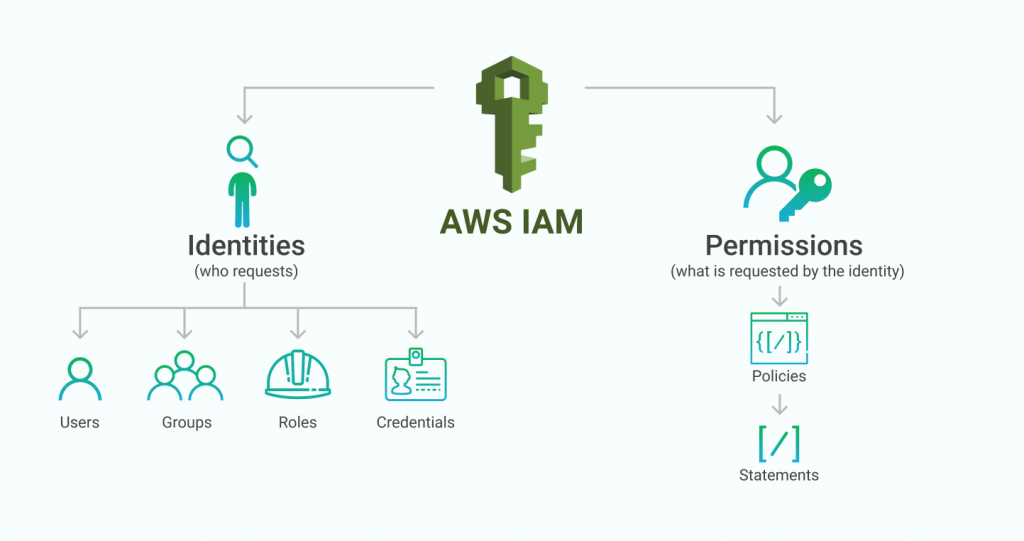
IAM Identities
Below are the IAM Identities: -
Users
Groups
Policies
Roles
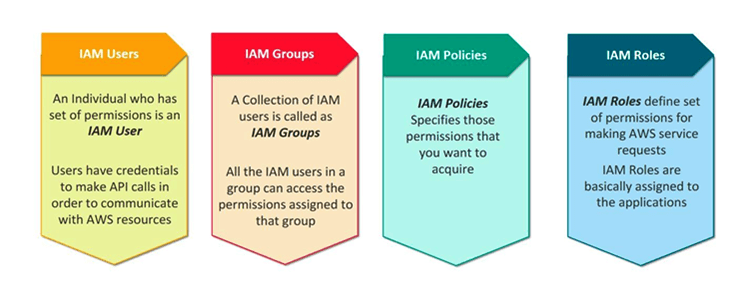
Users: Identities with associated credentials and permissions.
Groups: Collections of IAM users with shared permissions.
Policies: JSON documents that set permissions and control access to AWS resources.
Roles: Sets of permissions defining actions allowed and denied for an entity.
IAM Users
An IAM user is an identity with an associated credential and permissions attached to it. This could be an actual person who is a user, or it could be an application that is a user.
With IAM, you can securely manage access to AWS services by creating an IAM username.
Each IAM user is associated with only one AWS account. By default, a newly created user is not authorized to perform any action in AWS.
The advantage of having one-to-one user specification is that you can individually assign permissions to each user.
IAM Groups
A collection of IAM users is an IAM group. You can use IAM groups to specify permissions for multiple users so that any permissions applied to the group are applied to the individual users in that group as well.
Managing groups is quite easy. You set permissions for the group, and those permissions are automatically applied to all the users in the group. If you add another user to the group, the new user will automatically inherit all the policies and the permissions already assigned to that group.
IAM Policies
An IAM policy sets permission and controls access to AWS resources. Policies are stored in AWS as JSON documents. Permissions specify who has access to the resources and what actions they can perform.
The policy would contain the following information:
Who can access it
What actions that user can take
Which AWS resources that user can access
When they can be accessed
There are two types of policies: -
Managed Policy: is a default policy that you attach to multiple entities (users, groups, and roles) in your AWS account. Managed policies, whether they are AWS-managed or customer-managed, are stand-alone identity-based policies attached to multiple users and/or groups.Inline Policies: are policies that you create that are embedded directly into a single entity (user, group or role).
IAM Roles
An IAM role is a set of permissions that define what actions are allowed and denied by an entity in the AWS console. It is similar to a user in that it can be accessed by any type of entity (an individual or AWS service).
Role permissions are temporary credentials.
Different types of IAM Roles: -
Service Role: AWS services are the trusted entity type for these roles, which are created to allow AWS services to perform actions on the user’s behalf.Service-linked Role: A service-linked role is a unique kind of IAM role linked to an AWS service. It simplifies the process of setting up a service by automatically adding all the required permissions for a service to perform actions on the user’s behalf. It is predefined by the service. Most service-linked roles do not permit changes to trust or permission policies.Web Identity role: A user assumes a web identity role when they log in to AWS using an identity provider(IdP) such as Amazon and Facebook. Users do not have an identity within AWS itself; in exchange for an authentication token, they get temporary security credentials in AWS that map to an IAM role that is authorized to use the resources in the AWS account.SAML 2.0 federation role: These roles are assumed by users who are included in an external user directory, typically within organizations. This enables federated single sign-on (SSO), so that organizations can give users access to the AWS console and CLI without having to create a separate IAM user for each person.Custom IAM role: Custom roles allow us to define exact permissions.
Add User Data and Create Roles
Let's launch an EC2 instance with pre-installed Jenkins and create IAM roles to manage it.
Launch EC2 Instance with User Data
Login to AWS Console and search for EC2.
Launch an instance with the following details:
Name:
userdata-serverOS:
UbuntuInstance Type:
t2.microKey Pair: Select or create a key pair.
Network Settings: Allow HTTPS and HTTP traffic from the Internet.


- Expand the Advanced Details tab and enter the following script in the User Data box:
#!/bin/bash
sudo apt-get update -y
sudo apt install openjdk-11-jre -y
curl -fsSL https://pkg.jenkins.io/debian-stable/jenkins.io-2023.key | sudo tee /usr/share/keyrings/jenkins-keyring.asc > /dev/null
echo deb [signed-by=/usr/share/keyrings/jenkins-keyring.asc] https://pkg.jenkins.io/debian-stable binary/ | sudo tee /etc/apt/sources.list.d/jenkins.list > /dev/null
sudo apt-get update
sudo apt-get install jenkins -y
sudo systemctl enable jenkins
sudo systemctl start jenkins


Launch the instance and open port 8080 in the inbound rules of the security group.
Open the Jenkins UI in the browser using
<Public_IP:8080>.

Create IAM Roles
Go to AWS Management Console > IAM > Roles.
Click on Create Role.


Select AWS Service and choose EC2.
Add permissions to give full access to EC2 creation and management.


Name the role
DevOps-userand create it.
Conclusion
AWS User Data allows you to automate the configuration of your EC2 instances at launch time. AWS IAM helps you securely control access to AWS resources by managing users, groups, policies, and roles. By combining these powerful tools, you can ensure your AWS environment is both efficient and secure.
I encourage you to try this on your own and share your learning experiences in the comments. Happy automating!


