Day 5 - Advanced Linux Shell Scripting

Hey there! 👋
I'm Tushar Ranjan, a DevOps Engineer passionate. Currently, on a learning adventure, I'm here to share my journey and Blogs in the world of cloud and DevOps.
🛠️ My focus? Making sense of AWS services, improving CI/CD, and diving into infrastructure as code. Whether you're fellow interns or curious enthusiasts, let's grow together in the vibrant DevOps space.
🌐 Connect with me for friendly chats, shared experiences, and learning moments. Here's to embracing the learning curve and thriving in the exciting world of AWS DevOps Technology!
Advanced Shell Scripts in Linux
1) Creating Multiple Directories Using Shell Script.
ubuntu@ip-172-31-10-117:~/test$ cat test_script.sh
#!/bin/bash

dirs=("dir1" "dir2" "dir3" "dir4")

for dir in "${dirs[@]}"; do
  mkdir -p "$dir"
  echo "Created directory: $dir"
done
2) Creating a Script to backup all your work done till now.
ubuntu@ip-172-31-10-117:~/test$ cat test_script2.sh
#!/bin/bash

 source_directory="/root/demo"
 backup_directory="/root/backupdata"

 # Create a backup directory if it doesn't exist
 mkdir -p "$backup_directory/backup_$(date +"%Y-%m-%d")"

 # Copy all work to the backup directory
 cp -r "$source_directory" "$backup_directory/backup_$(date +"%Y-%m-%d")
3) Creating a Script to list top 10 files from a directory according to size.
ubuntu@ip-172-31-10-117:~/test$ cat test_script3.sh
#!/bin/bash

# Prompt the user to enter the directory path
echo -e "Enter the directory path: \c"
read dir_path

# Check if the entered path is a valid directory
if [ -d "$dir_path" ]; then
    # List the top 10 files by size in the directory
    echo "Top 10 files by size in $dir_path are:"
    du -ah "$dir_path"/* | sort -rh | head -n 10
else
    # Print an error message if the directory does not exist
    echo "The given path does not exist."
fi
4) Creating a Shell Script to check whether given process is a running process, zombie process, hung process or completed
ubuntu@ip-172-31-10-117:~/test$ cat test_script4.sh
#!/bin/bash

# Prompt the user to enter the process PID
echo -e "Enter the process PID: \c"
read pid

# Get the process state using the ps command
process_state=$(ps -o stat= -p $pid 2>/dev/null)

# Check if the process exists
if [ -z "$process_state" ]; then
    echo "Process with PID $pid does not exist"
    exit 1
fi

# Determine the process state
case "$process_state" in
    S*)
        echo "The process $pid is in a Sleeping state."
        ;;
    R*)
        echo "The process $pid is in a Running state."
        ;;
    Z*)
        echo "The process $pid is in a Zombie state."
        ;;
    T*)
        echo "The process $pid is in a Stopped state."
        ;;
    *)
        echo "The process $pid is in another state: $process_state"
        ;;
esac
5) Creating a Shell Script to find the difference in the files abc.txt and pqr.txt and store the difference into another file xyz.txt
ubuntu@ip-172-31-10-117:~/test$ cat test_script5.sh
#!/bin/bash

file1="abc.txt"
file2="pqr.txt"
diff_file="xyz.txt"

# Use diff to find differences and store them in diff_file
diff -u "$file1" "$file2" > "$diff_file"

# Check if there are any differences
if [ $? -eq 0 ]; then
  echo "No differences found between $file1 and $file2."
else
  echo "Differences found between $file1 and $file2. See $diff_file for details."
fi
CRON Jobs
Cron jobs are scheduled tasks that run automatically at specified times. They are useful for automating repetitive tasks like backups and updates.
How Cron Jobs Work:
Cron is a background service that runs scheduled tasks.
Cron jobs are specified in a crontab file.
The crontab file is located at
/etc/crontab.
Crontab Syntax: The crontab file has a specific syntax consisting of five fields followed by the command to be executed:
Minute: (0-59)
Hour: (0-23, 24-hour format)
Day of the Month: (1-31)
Month: (1-12)
Day of the Week: (0-6, Sunday to Saturday; sometimes 7 for Sunday)
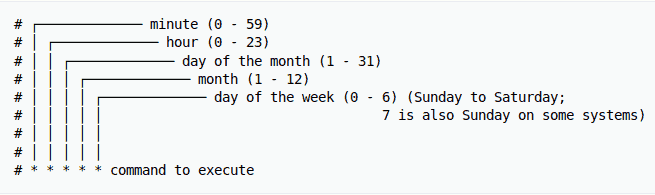
Example Crontab Entry:
ubuntu@ip-172-31-10-117:~/test$ crontab -e
# Runs a script every day at 2:30 AM
30 2 * * * /root/script.sh
User Management
Managing users in Linux involves creating, modifying, and deleting user accounts. Here are some essential commands:
Creating Users:
sudo useradd username: Create a new user.sudo useradd -m username: Create a new user with a home directory.
Checking User Account Properties:
cat /etc/passwd: Display user account properties.
Setting User Password:
sudo passwd username: Set or change the password for a user.
Switching Users:
su username: Switch to another user account.
Managing Groups:
sudo groupadd groupname: Create a new group.cat /etc/group: List all groups.sudo usermod -aG groupname username: Add a user to a group.sudo gpasswd -d username groupname: Remove a user from a group.
Deleting Users and Groups:
sudo userdel username: Delete a user account.sudo groupdel groupname: Delete a group.
Conclusion
In this post, we explored advanced shell scripting for creating multiple directories, scheduling tasks with cron jobs, and managing users in Linux. These tasks are essential for automating processes, ensuring system efficiency, and maintaining secure access control.
Key Takeaways:
Shell Scripting: Automate the creation of multiple directories.
Cron Jobs: Schedule and automate repetitive tasks.
User Management: Create, modify, and delete user accounts and groups.
By mastering these commands and techniques, you can streamline your Linux administration tasks and improve your overall system management efficiency.
~ Tushar Ranjan🙂


